You sign in with the email address and password you chose when you created your account.
Sign in
- Click Sign in / Join in the header (on a phone: menu › Sign in).
- Enter your email and password.
- Press Sign in. You go to My account, or back to the page you were on.
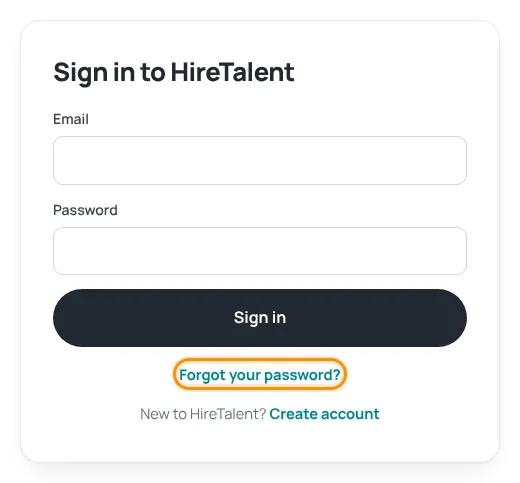
Forgot your password?
- On the sign-in page click Forgot your password?.
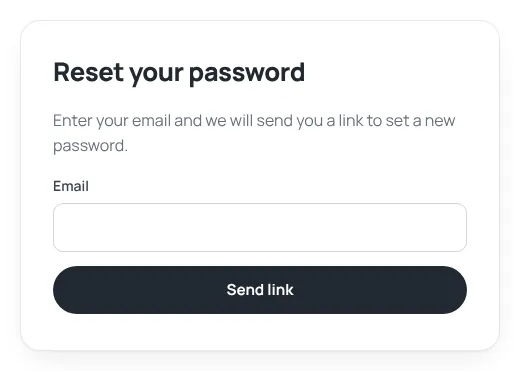
- Enter your email and press Send link.
- Open the email “Set your HireTalent password” and press the button within 24 hours.
- Type your new password twice (at least 8 characters) and press Save. You are signed in straight away.
Signed up for job alerts before accounts existed? Use “Forgot your password?” with the same email to turn your alert profile into a full account.
Change your password
When you are signed in, open My account › Settings, enter your current and new password under Change password and press Save. See Account settings.
HireTalent will never ask for your password by phone, WhatsApp or email. Only type it on hiretalent.om.
Was this article helpful?
Thanks for your feedback!
Sorry about that. Tell us what was missing in a support ticket and we will help you. Open a support ticket
Related articles
Confirm your email addressWhy we ask you to confirm your email, what it unlocks and what to do if the email does not arrive.Account settingsCompany details, hiring and job hunting from one account, password, photo and deleting your account.Your account dashboardWhat you find under My account: overview, job alerts, CVs, job profile, adverts, payments, support and settings.