When your CV is ready, go to the last step, Design & download, or press Download in the toolbar.
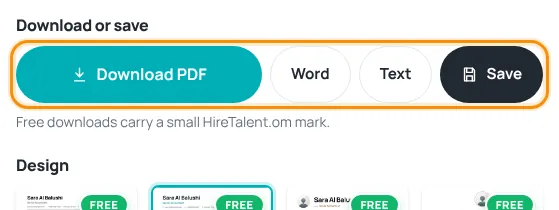
Download
- Press Download PDF, Word or Text.
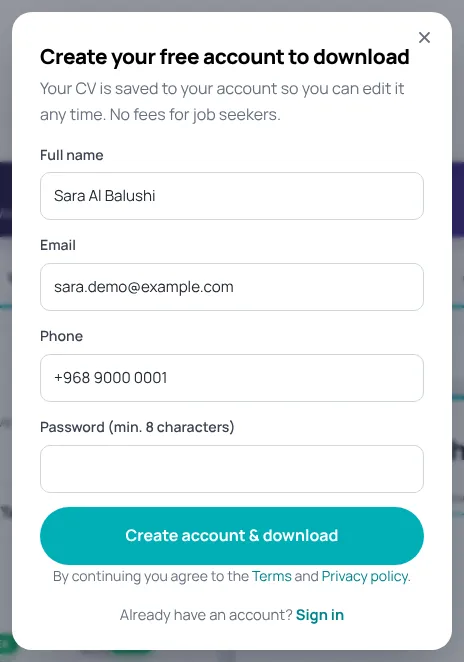
- If you are not signed in, a window asks you to create a free account (name, email, phone, password) or sign in. Your CV is saved to that account.
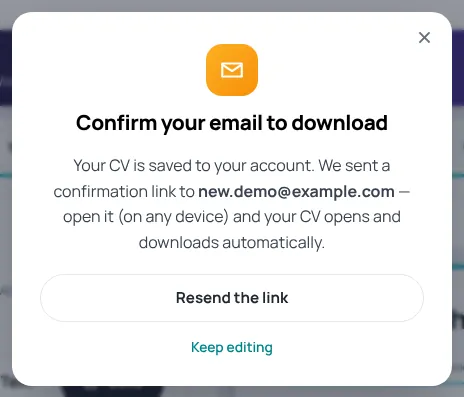
- If your email is not confirmed yet, we email you a link. Open it on any device — your CV opens and the download starts automatically.
- The file is saved to your device. PDF is best for sending to employers; Word lets you edit it further.
Save without downloading
Press Save any time. The CV is stored in your account and you can open it from any device.
Find your saved CVs
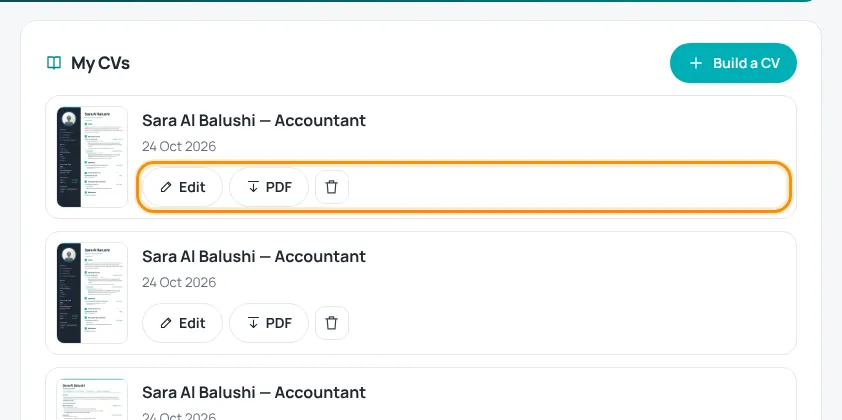
- Open My account › My CVs (or My CVs in the CV builder toolbar).
- Press Edit to continue, PDF to download again, or the bin icon to delete a CV.
- Use Build a CV to start a new one.
A free download carries a small HireTalent.om mark. Premium designs download without it.
Was this article helpful?
Thanks for your feedback!
Sorry about that. Tell us what was missing in a support ticket and we will help you. Open a support ticket
Related articles
Build your CV step by stepChoose the purpose and language, then fill in 7 short steps with a live preview.CV designs: free and premiumWhat the green Free badge and the gold crown mean, and how to unlock premium designs.Confirm your email addressWhy we ask you to confirm your email, what it unlocks and what to do if the email does not arrive.